Analysis of alternative procurement items

In the Offer Overview, by clicking on RFx Analysis, a review of the submitted offers from all suppliers who participated in the RFx is displayed.
At the top right of the screen, there are six predefined analysis views:
Ranking of the overall best suppliers
Ranking of the best offers by procurement groups
Overview of the best offers by procurement items
Analytical and summary overview of offers
Ranking of supplier offers by procurement items
Depending on the selected view, by clicking the Assign Job button, the system will assign the job accordingly.
For example, if we select the view “Ranking of supplier offers by procurement items” and click the Assign Job button, the system will assign the job by procurement items to the suppliers who submitted the lowest offer for each item.
SAVING THE ANALYSIS
By clicking the button, it is possible to save the conducted analysis. When saving, it is possible to add a description of the analysis and specify whether it will be Public (available to all team members) or Private (visible only to the procurement project manager).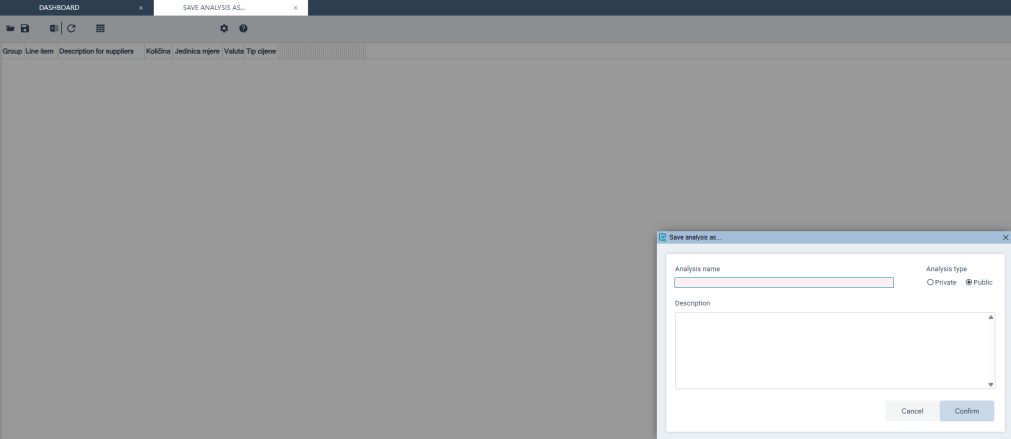
OPENING A SAVED ANALYSIS
By clicking the button, a window for selecting a saved analysis opens. The desired analysis needs to be selected and then Select should be clicked.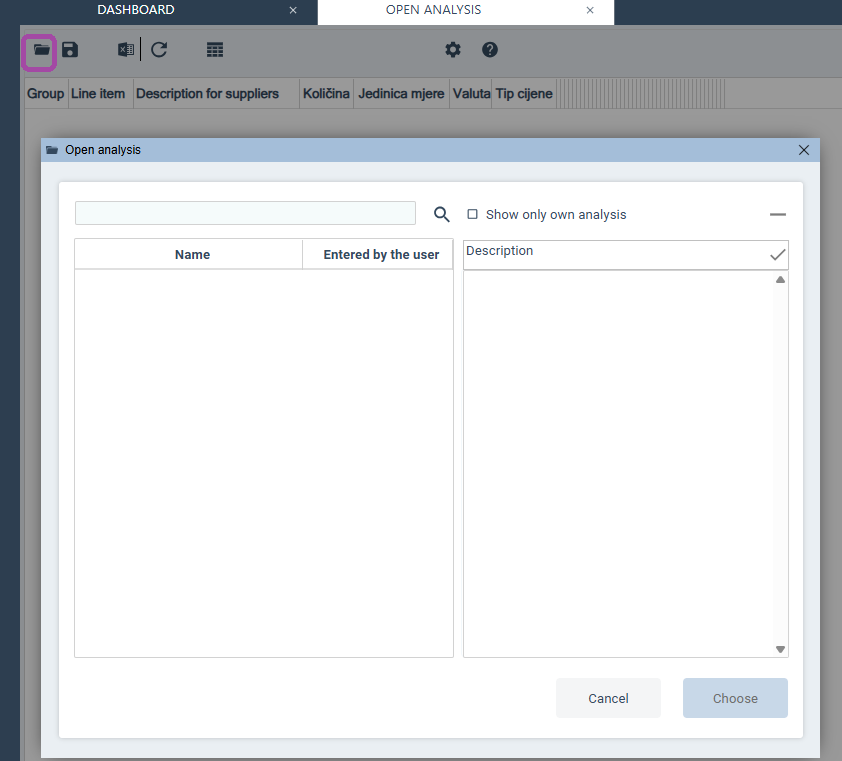
LOADING THE ANALYSIS INTO MS EXCEL
The data contained in the table can be loaded into MS Excel by clicking the button.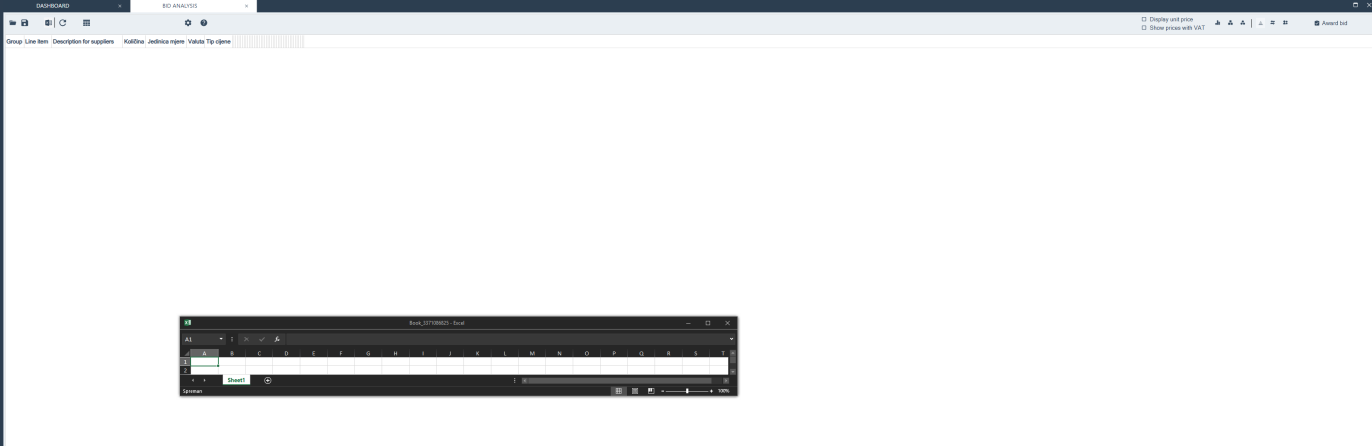
For example, if we select the view “Ranking of supplier offers by procurement items” and click the Assign Job button, the system will assign the job by procurement items to those suppliers who submitted the lowest offer for each individual item.
The best original offer is highlighted in green and the best alternative in yellow.